How to Share Several Photo Albums With One Link (2026)
Most photo platforms tie one link to one album. Google Photos, iCloud Shared Albums and event-gallery apps all work this way, so sharing three albums with the same person means sending three separate links. Two approaches break the pattern: a Dropbox folder shares everything nested inside it, and Viallo - a private photo sharing platform that stores photos on EU servers at full resolution with no AI scanning - creates one link and one QR that opens exactly the albums you picked. The trade-off is worth knowing before you choose: a link scoped to specific albums stays frozen at that set, while a link scoped to your whole library keeps picking up new albums as you make them.
Can you share more than one photo album with a single link?
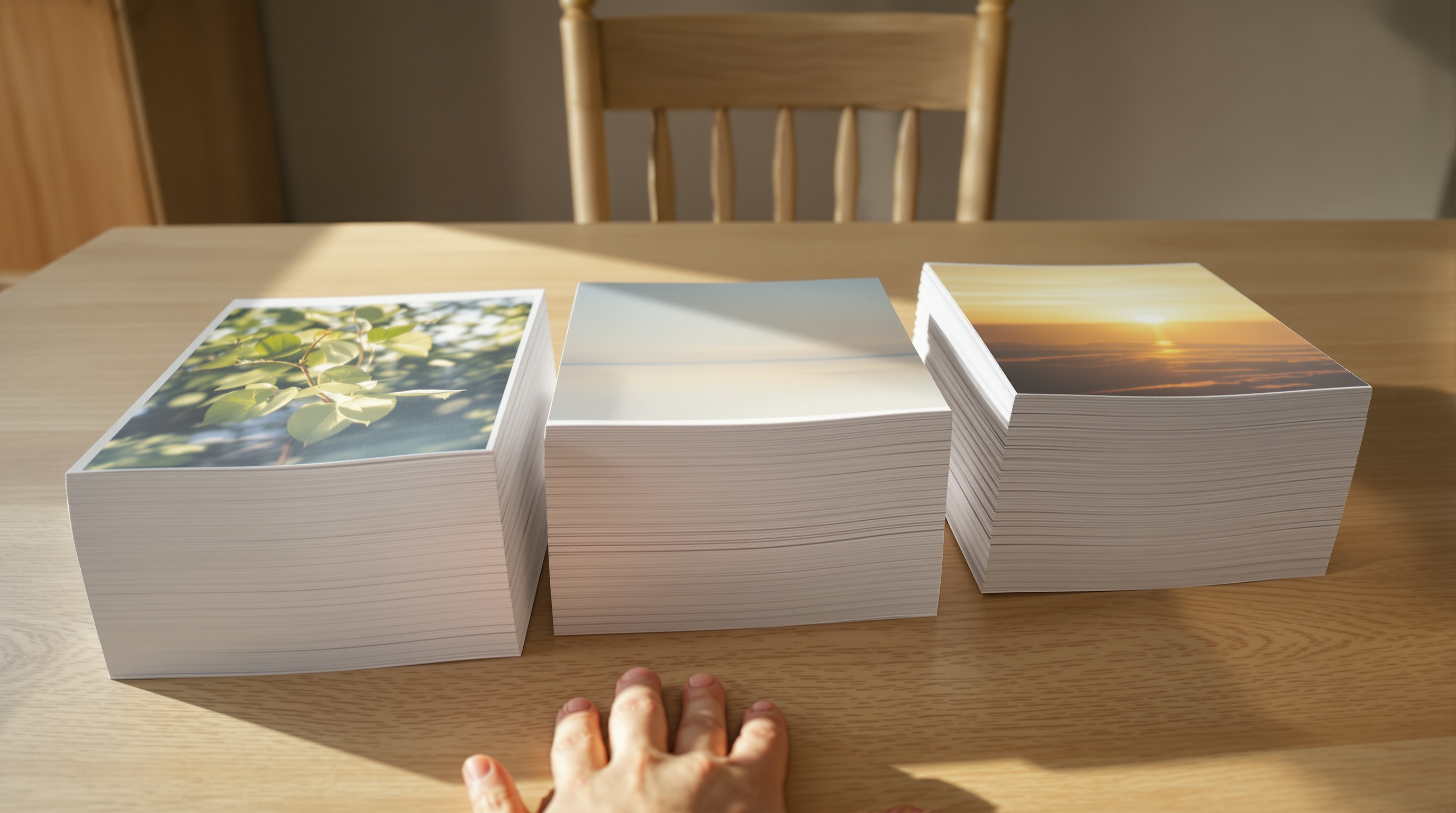
Usually no. Google Photos, iCloud Shared Albums and most event-gallery apps treat one album as one link, so sharing three albums means sending three links. The exceptions are folder-based tools like Dropbox, which share everything nested inside the folder, and Viallo, where one link opens exactly the albums you pick.
There is one limit worth knowing before you build anything on this. A link scoped to a chosen set of albums is a fixed set - albums you create next month are not on it. That is not an oversight. "Only these three" and "whatever I make later" are contradictory instructions, and one address can only carry one of them. What matters is that you know which one you picked, and that the product tells you before the link exists rather than after your mother has seen something you meant to keep to yourself.
Why five links become zero links
Someone who receives five links opens one. Not because they do not care about your photos, but because the second link is now forty messages up a group chat, sandwiched between a restaurant recommendation and a photo of someone's dog. Links do not queue. They compete, and the one that arrives first wins.
The everyday version of this is a parent asking, three months later, whether you ever sent the pictures from the christening. You did. It was the fourth link. Nobody's fault, and no amount of "scroll up a bit" recovers it.
Two posts on this site have been circling that problem without finishing it, and it is worth naming them rather than quietly writing over them. The group-chat comparison lists "selective sharing - some photos for some people" as a thing group chats cannot do, and its "privacy is all or nothing" section states the need precisely: if you want to share some photos with some people and different photos with others, group chats do not help. It never says what does. Separately, the guide to sending hundreds of photos advises "use one link, not multiple - one album, one link," which is good advice that quietly assumes you only ever have one album worth sending. The moment you have four, that rule stops being achievable and starts being a reproach.
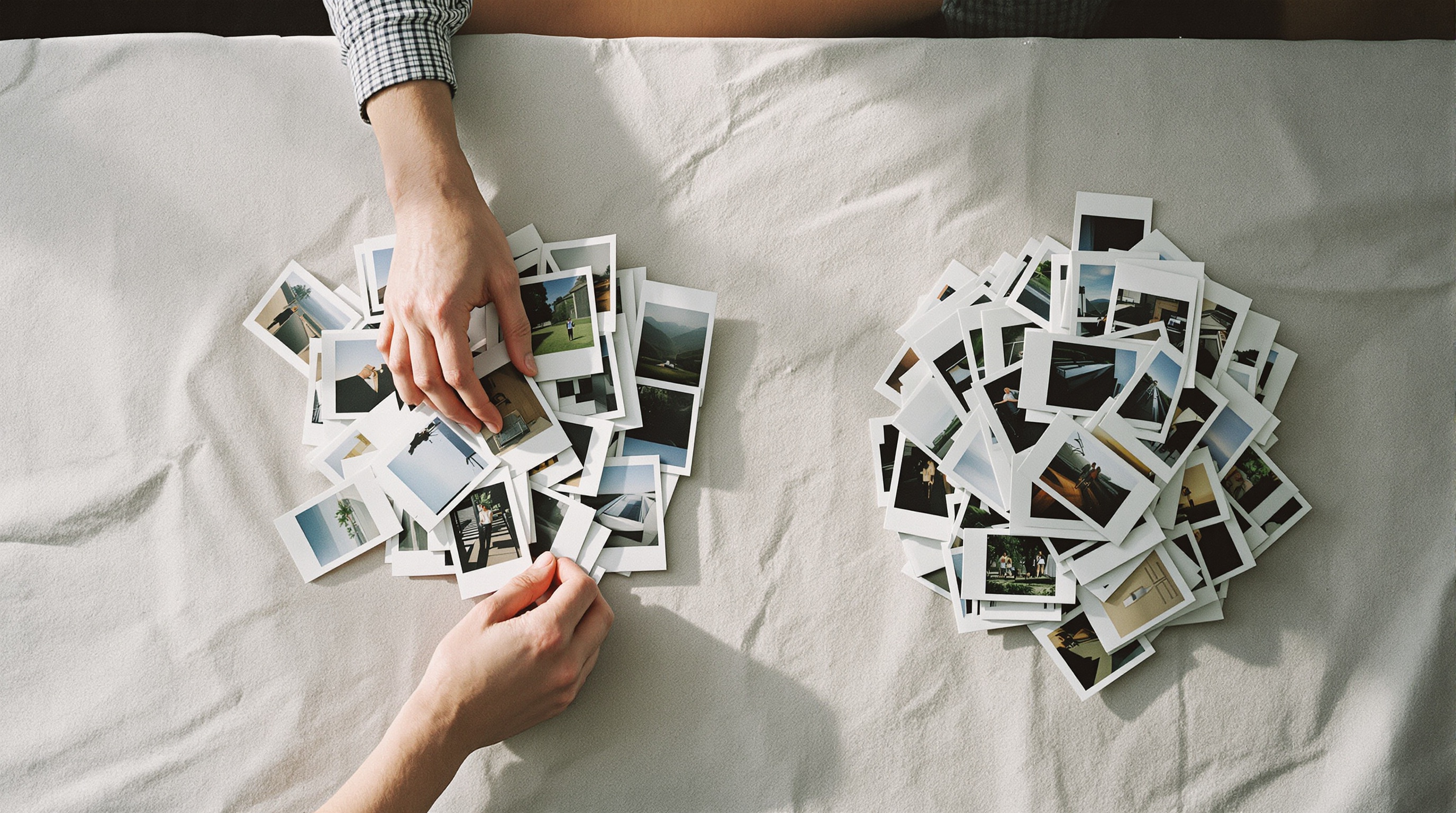
This page is the missing half of both. An album is a unit of occasion; a link is a unit of audience. Those are two different axes, and almost every photo platform has only ever given you the first one.
What each platform actually does
Only two mechanisms in mainstream photo sharing put more than one album behind a single address, and they behave in opposite ways. A Dropbox folder is a container: share the parent and the recipient keeps getting everything inside it, including whatever you drop in tomorrow. A curated Viallo link is a selection: the recipient gets the albums you ticked and nothing else, and it does not grow. Everything else on this table is one album per link.
| Platform | One link, several albums? | What the recipient sees | Albums added later |
|---|---|---|---|
| Google Photos shared album | No - one album per link | That album only | Not applicable |
| iCloud Shared Albums | No - one album per invitation | That album; subscribers need an Apple Account | Not applicable |
| Dropbox shared folder | Yes, by nesting folders | Everything inside the folder, with no way to exclude one | Yes, automatically |
| WeTransfer | No - one transfer, one link | That transfer | No |
| Event gallery apps | Built around one event gallery | That event | Not applicable |
| Viallo curated link | Yes - you pick the albums | Only the albums you picked | No on a curated link; yes on an all-albums link |
The honest verdict: for handing someone your entire archive and never thinking about it again, a Dropbox shared folder is the simpler tool, and the automatic inclusion of new content is a real advantage. Two things are worth weighing against it. The first is that its strength and its weakness are the same property - there is no way to say "everything in here except that one folder," so if your answer to "who should see this?" differs album by album, a folder cannot express it. The second is what the recipient actually opens: a file browser with thumbnails rather than a gallery, which is fine for a hand-off and poor for browsing. The full breakdown is in the Viallo and Dropbox comparison.
Google Photos and iCloud Shared Albums are not being careless here. Both were designed around the album as the unit of collaboration, and within one album they do a lot that a plain link does not - comments, contributions, notifications. The cost of that design is that the album is also the unit of sharing, and there is no layer above it.
How to share a chosen set of albums with one link
Viallo is a private photo sharing platform that stores photos on EU servers at full resolution, never uses them to train AI, and lets anyone open a shared album in a browser without signing up. Its curated share link is the piece that does the job on this page: one address, one QR, and a set of albums you chose by hand. On the receiving end there is no account needed just to look - the link opens in whatever browser they already have.
- Open your albums and tap Share, at the top of the page next to New Album. It is always there - it does not wait for an album to be empty or full.
- Pick the albums this link should open. Tick them individually, or use Select all to include the whole library. A running count shows how many of your albums are selected.
- Choose what people can do with it: View only, which is the default, or Can add photos.
- Create the link. You get the address and a QR code on the same card, with Copy, a share sheet, and Download QR, which saves a print-ready PNG.
- Name it - "Sarah", "Grandma", "Work". The name is optional, only you ever see it, and in three months it is the difference between managing your links and guessing.
Curated links, the QR and guest contribution work on every plan, including Free. The free plan covers 2 albums, 200 photos and 10 GB of storage, which is the real ceiling on how much you can put behind a link; Plus is $5.99 a month or $59 a year for 20 albums, 5,000 photos and 200 GB, and Pro is $14.99 a month or $149 a year for 1 TB. Current numbers are on the pricing page.
One structural cap exists and it is unlikely to matter: a single link can carry up to 100 albums. Since Plus tops out at 20 albums on the account, no Plus subscriber can reach it.
One link for everything, or one link for these three
This is the choice the whole feature turns on, and getting it backwards is the one mistake with consequences. An all-albums, view-only link is a standing invitation to your library: it picks up albums you create later, automatically, which is exactly what you want for the person who should see everything from now on. A curated link is a fixed set: the albums you picked, and albums you create later are not included. Both halves of that sentence matter, and they travel together - the property that makes the first one convenient is the property that makes it the wrong choice for a colleague who should only ever see the office party.
A link set to Can add photos is always the curated kind. It cannot be pointed at your whole library - not by accident, not by editing it later, not by anything you can click. Upload access only ever covers albums you named explicitly. Whether that matters to you depends on what you are collecting; if you are, the question of what each platform requires before someone can upload is where the real differences between these products show up.
The containment is worth stating precisely, because "private" is a word every photo product uses and almost none of them define. On a curated link, the albums you did not pick are not reachable from that address - not by browsing to them, and not by editing the URL to guess at one. The selection is enforced where the content is served, not merely applied to the view the recipient is handed.
Viallo also states the consequence in plain English before you commit: a line under the picker that reads back what the link will actually do, and a second one on the confirmation screen after it exists. It is a small thing, and it is the thing that prevents the specific accident this whole category is prone to.
One album per trip is still right
Nothing here changes the advice to keep one trip in one album. If you split Japan across "Tokyo", "Kyoto" and "Osaka," you get three partial maps instead of one complete one, three album covers to explain, and three places to look for the photo of the vending machine. For a group trip the case is stronger still: agreeing on one album before you leave, rather than five, is what stops the same fortnight arriving in four separate half-finished piles.
The distinction is that the album and the link answer different questions. One album per trip is about the shape of the thing - a trip is one event, and it deserves one map and one timeline. One link across several trips is about who is looking. Your sister does not want three years of your holidays delivered as eleven separate messages; she wants one address she can bookmark. Those two rules have never actually been in conflict. It only looked that way while the link was welded to the album. The travel comparison works through the same trade-off from the trip side, including when it is worth running one link across several trips.
Telling your links apart
The failure mode of multiple links is not creating them - it is looking at six of them six months later and not knowing which is which. Every link on the management page carries the name you gave it, a badge saying what it covers ("All albums" or "3 albums"), a badge saying what it permits ("View only" or "Can add photos"), the number of times it has been opened, and the date you made it. That is enough to answer "what did I send my in-laws?" without opening anything.
Each link can be changed after the fact:
- Rename it - the label is for you, not the recipient, so it can be as blunt as you like.
- Re-scope it - add or remove albums from a link that is already out in the world.
- Change what it permits - view only, or can add photos.
- Revoke it - typing REVOKE to confirm, because this one is not undoable.
What protects a link with no password is its address. Viallo generates 16 random bytes and renders them as 32 hexadecimal characters, which is not a string anyone guesses their way into, and the app treats that address as a credential rather than as a page name - it is stripped out of analytics URLs and marked so that click tracking never records it. The control you actually get is a private address you can withdraw: no expiry date and no download deadline. The link works until you revoke it - and revoking it stops it immediately. Google Photos and Dropbox links work the same way at heart, as bearer links, so the honest comparison is not about secrecy but about how quickly you can take one back. If you want the broader picture of who can see what, and how to change it later, the privacy guide covers every sharing surface.

Frequently Asked Questions
What is the best way to share several photo albums with one person?
It depends on whether they should see everything. If the answer is yes and always will be, a Dropbox shared folder is the simplest option - share the parent folder once and anything you add later appears automatically. If the answer is "these albums, not those," a Viallo curated link is the better fit: one address and one QR that opens only the albums you ticked, on every plan including Free. Google Photos and iCloud Shared Albums cannot do either, because both scope a link to a single album.
How do I share more than one album without sending multiple links?
In Viallo, open your albums, tap Share, tick the albums the link should cover, choose View only or Can add photos, and create it. You get one URL and one QR code, and the QR downloads as a print-ready PNG. It costs nothing - curated links work on every plan including Free - and the person you send it to does not need an account, an app, or a password. On Google Photos or iCloud you would repeat the share step once per album.
Is a photo link without a password safe to send?
A link is as private as its address and as recoverable as its off switch. Viallo builds each share address from 16 random bytes rendered as 32 hexadecimal characters, treats it as a credential rather than a page name, and lets the owner revoke it at any time, which takes effect immediately. Google Photos and Dropbox links work on the same principle: anyone holding the link can open it. The practical safeguards are sending it to the right person, keeping the scope tight, and revoking it when it has done its job.
What is the difference between a curated link and an all-albums link?
An all-albums link shows your whole library and keeps growing - albums you create later appear on it automatically, with no action from you. A curated link shows only the albums you selected when you made it, and albums you create later are not added. Use the all-albums link for the person who should see everything from now on, and a curated link for anyone who should see a specific slice. A link that lets people add photos is always curated; upload access can never cover a whole library.
Can I share some of my albums with one person and different albums with someone else?
Yes. Each link carries its own set of albums, so one link can open the two holiday albums you sent your sister while another opens only the album from the office party. There is no cap on how many links an account can have, and each one shows its own name, scope, permission and view count so you can tell them apart later. A single link can carry up to 100 albums. Group chats, Google Photos and iCloud Shared Albums all require a separate share action per album instead.