How to Back Up iPhone Photos Without iCloud (2026)
You can back up iPhone photos without iCloud by using Mac Finder or Windows iTunes to copy photos to your computer, uploading to Google Photos or Viallo, syncing with Dropbox, copying to an external drive via a Lightning or USB-C adapter, or using Amazon Photos if you have Prime. Each method has different trade-offs on storage cost, quality, and privacy. The fastest approach for most people is Google Photos or Viallo for cloud backup, and Mac Finder for a local copy. Using two methods together gives you the best protection.

Why People Skip iCloud for Photo Backup
iCloud's free tier gives you only 5 GB - barely enough for a few hundred photos if you shoot in HEIC, and almost nothing if you record video. The paid plans are not expensive ($0.99/month for 50 GB), but many people reasonably do not want yet another subscription, especially when competing options like Google Photos offer 15 GB free.
Privacy is another factor. Apple's CSAM scanning controversies a few years back shook confidence in iCloud Photos even among longtime Apple users. iCloud also makes it easy to accidentally delete photos everywhere - because it's a sync tool, not a true backup. Delete a photo on your iPhone and it disappears from every device within 30 days.
Some people simply want independence from Apple's ecosystem. If you ever switch to Android, iCloud becomes difficult to use. And if your Apple ID gets locked - which does happen - your photos are inaccessible until the issue is resolved.
According to a 2025 Backblaze survey, 34 percent of iPhone users do not rely on iCloud as their primary photo backup. That's a large group of people who need a reliable alternative strategy.
6 Ways to Back Up iPhone Photos Without iCloud
Here is a quick overview of the main methods before we walk through each one in detail.
| Method | Storage | Quality | Privacy | Cost |
|---|---|---|---|---|
| Mac Finder / Windows iTunes | Your computer's drive | Full resolution | Local only - excellent | Free |
| Google Photos | 15 GB free; paid plans from $2.99/mo | Original or compressed (Storage Saver) | Google scans and analyzes photos | Free tier available |
| Viallo | 10 GB free; paid plans from $5.99/mo | Full resolution, no compression | EU-hosted, no AI scanning, no ads | Free tier available |
| Dropbox | 2 GB free; paid from $11.99/mo | Full resolution | Encrypted in transit, US-hosted | Free tier very limited |
| External Drive / USB | As large as the drive (1 to 4 TB typical) | Full resolution | Physically offline - excellent | One-time hardware cost |
| Amazon Photos | Unlimited for Prime members (photos) | Full resolution | Amazon may use for AI training | Free with Prime ($14.99/mo) |
Method 1: Mac Finder or Windows iTunes
Connecting your iPhone directly to a computer and copying photos is the oldest backup method and still one of the most reliable. Nothing is uploaded anywhere - the photos live on your hard drive.
Step-by-step on Mac (macOS Catalina or later)
- Connect your iPhone to your Mac with a USB cable.
- Open Finder. Your iPhone will appear in the sidebar under Locations. Click it.
- If prompted on your iPhone, tap Trust and enter your passcode.
- Click the Photos tab in Finder. You'll see an option to sync your photo library, but for a manual backup, open Image Capture instead (search for it in Spotlight).
- In Image Capture, select your iPhone on the left. Choose a destination folder on your Mac. Click Import All.
- Wait for the transfer to complete. Do not unplug during transfer - it can corrupt files.
Step-by-step on Windows (iTunes)
- Install iTunes from the Microsoft Store if you do not have it.
- Connect your iPhone with a USB cable. Trust the computer if prompted.
- Open File Explorer. Your iPhone will appear under This PC as a portable device.
- Navigate to iPhone, then Internal Storage, then DCIM. You'll see folders of your photos.
- Copy the DCIM folder to your computer. This copies originals at full quality.
Storage: Limited by your computer's drive. A 2 TB external drive connected to your computer extends this significantly.
Pros: Free, no cloud account needed, full resolution, works offline, and no third party sees your photos.
Cons: Manual process - you have to remember to do it. Not accessible remotely. If your computer dies and this is your only backup, you lose everything.
Privacy: Excellent. Your photos never leave your devices. For an even stronger local backup, see our guide on how to back up your photos before losing them.
Method 2: Google Photos
Google Photos is the most popular iCloud alternative for iPhone users. The app is free, syncs automatically in the background, and 15 GB is enough for most people who shoot primarily photos (not video).
Step-by-step
- Download Google Photos from the App Store if you do not have it.
- Sign in with your Google account.
- When prompted, choose your backup quality. Select Original quality if you want full-resolution backups. If you pick Storage Saver, Google compresses photos to 16 MP and videos to 1080p - and that compression is permanent.
- Tap your profile photo in the top right, then Photos settings, then Backup to confirm backup is on.
- Keep the app open on Wi-Fi for the initial backup of your existing library. It can take several hours for large libraries.
Storage and pricing: 15 GB free shared across Google Drive, Gmail, and Photos. 100 GB for $2.99/month, 200 GB for $3.99/month, 2 TB for $9.99/month (Google One plans as of 2026).
Pros: Automatic background backup, excellent AI search and face grouping, 15 GB free, works across iPhone and Android seamlessly.
Cons: Google analyzes your photos to serve ads and improve its AI models. The free Storage Saver mode permanently compresses photos. US-based servers.
Privacy: Lower than local methods. Google's privacy policy allows using your content to improve services. If that bothers you, read our deeper look at iCloud Photos privacy vs Google for a full comparison.

Method 3: Viallo
Viallo is a private photo sharing platform that stores photos at full resolution in EU data centers. Albums can be shared through private, revocable links without recipients needing an account. Photos are not scanned, compressed, or used for AI training.
The specific feature worth highlighting here is full-resolution cloud backup without any iCloud dependency. Your photos go straight from your iPhone to Viallo's EU servers. The originals are never touched - no compression, no format conversion, no metadata stripping. You can access them from any browser on any device.
How Viallo backup works
Upload photos directly from the iOS app or browser. Viallo accepts HEIC, JPEG, RAW, and video files up to the plan limit. Photos are stored at full resolution without any server-side processing. Once uploaded, you can create shareable album links - useful if you want to share a backup with family without giving them access to your entire library. Uploads happen over HTTPS and the files are stored encrypted at rest on Cloudflare's EU infrastructure.
Step-by-step
- Go to viallo.app and create a free account. No credit card required.
- Create a new album - for example, "iPhone Backup 2026."
- Tap the upload button and select photos from your camera roll. You can select multiple photos at once.
- For large libraries, upload in batches by event or month. This keeps albums organized rather than one giant dump.
- Once uploaded, verify a few photos open at full resolution in the browser.
- Optional: set an expiration date on the share link if you plan to send it to family members.
Storage and pricing: Free plan includes 2 albums, 200 photos, and 10 GB. Paid plans start at $5.99/month (Plus) with more albums and storage. See Viallo's pricing for current tiers.
Pros: Full resolution without compression, EU-hosted, no AI scanning, shareable without requiring recipients to sign up, works as both backup and sharing platform.
Cons: The free tier (200 photos) is smaller than Google Photos' 15 GB. Not designed as a bulk automatic sync tool - better for curated albums than raw camera roll mirroring.
Privacy: Excellent. EU data centers, GDPR-compliant, no ad targeting, no AI training on your photos. See our comparison of Google Photos vs iCloud for context on why EU hosting matters.
Method 4: Dropbox
Dropbox has a camera upload feature that automatically backs up iPhone photos when you open the app. It stores files at full resolution and works across every platform.
Step-by-step
- Download the Dropbox app from the App Store. Create a free account.
- Open the app, tap the home icon, then go to Account, then Camera Uploads. Toggle on "Enable Camera Uploads."
- Choose whether to upload over Wi-Fi only (recommended) or also mobile data.
- Dropbox will create a "Camera Uploads" folder in your Dropbox. Photos appear there automatically each time you open the app.
- To check your backup, open the Dropbox website and look inside the Camera Uploads folder.
Storage and pricing: Free accounts get only 2 GB, which fills up fast. The Plus plan is $11.99/month for 2 TB. Dropbox's pricing is more expensive than Google One for the same storage amount.
Pros: Full resolution, excellent desktop sync, works well for people already using Dropbox for documents. Camera uploads are reliable.
Cons: The free tier is nearly useless for photo backup at 2 GB. Pricing is high relative to storage. No dedicated photo viewer - photos live in a flat folder structure.
Privacy: Dropbox encrypts files in transit and at rest, but servers are US-based. Dropbox's privacy policy allows scanning files for abuse prevention. Better than Google Photos for privacy, but not as strong as a local backup or Viallo.
Method 5: External Drive or USB
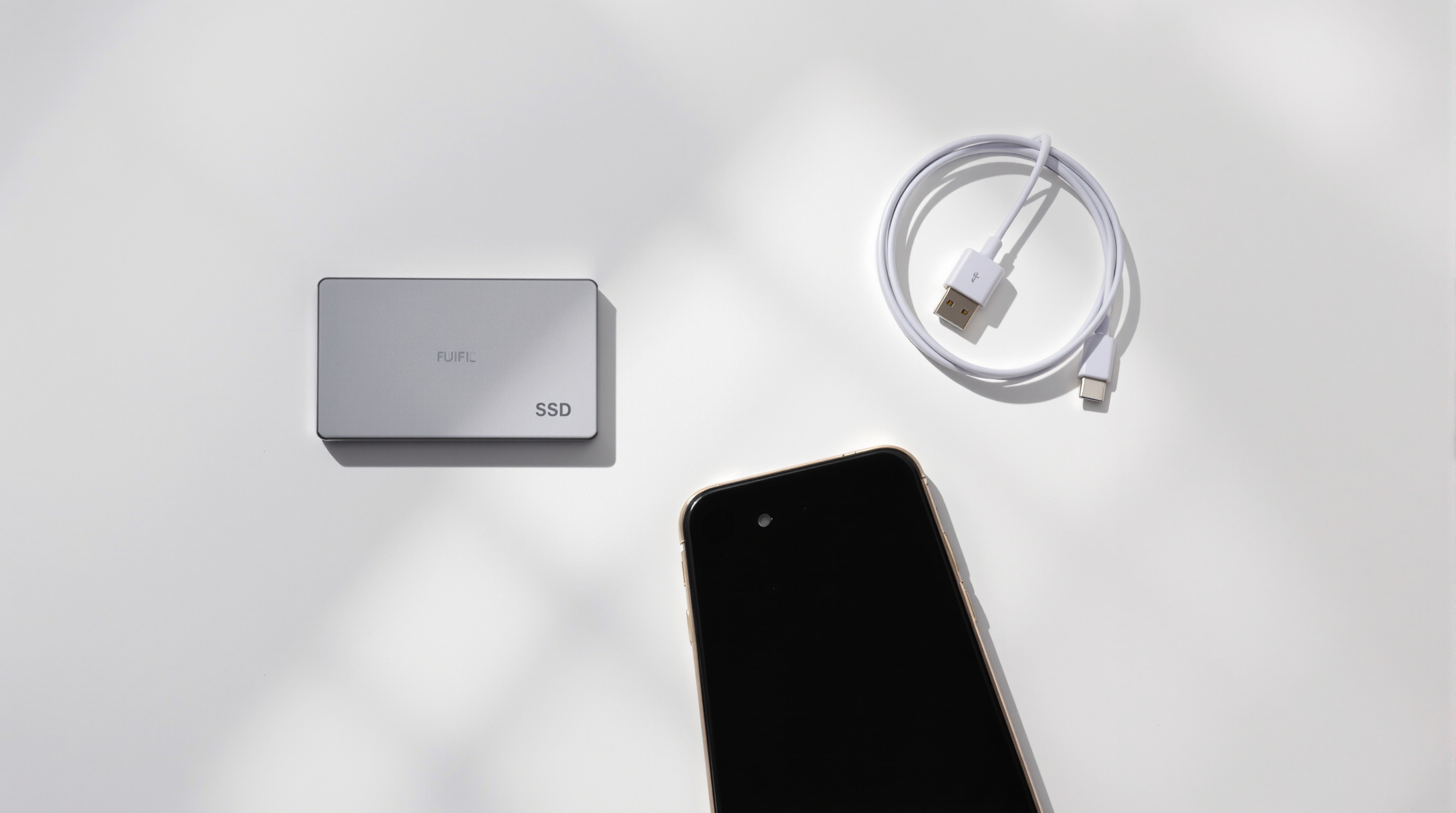
If you want a true offline backup with no cloud dependency, an external drive is the most straightforward option. Modern iPhones with USB-C (iPhone 15 and later) can connect directly to a drive. Older Lightning iPhones need an adapter.
Step-by-step (USB-C iPhone 15 or later)
- Get a USB-C external SSD or flash drive. Samsung T7, SanDisk Extreme, and WD My Passport are all reliable options.
- Plug the drive directly into your iPhone's USB-C port.
- Open the Files app. The drive appears under Locations. You can copy photos from your camera roll by selecting them in the Photos app, tapping Share, then Save to Files, and choosing the external drive.
- For bulk transfers, connect the drive to your computer, then plug in your iPhone and use Image Capture (Mac) or File Explorer (Windows) to copy photos to the drive.
Step-by-step (Lightning iPhone - iPhone 14 and earlier)
- Buy a Lightning to USB-A adapter (Apple or third-party) and connect a USB flash drive, or use a Lightning flash drive designed for iPhone (Sandisk iXpand is a popular option).
- If using the SanDisk iXpand, install its companion app, then plug in and back up directly.
- Alternatively, connect your iPhone to a computer via Lightning cable and use Image Capture or File Explorer to copy photos to the external drive.
Storage and pricing: A 1 TB external SSD costs $60 to $100. That's enough for 200,000+ photos. One-time cost with no subscription.
Pros: Full resolution, no cloud dependency, no privacy concerns, works indefinitely with no recurring cost. SSDs are fast and durable.
Cons: Not automatic - requires manual action. The drive can be lost, stolen, or fail. Not accessible remotely unless you set up a NAS.
Privacy: Best of any method. Nothing leaves your physical possession. For people dealing with phone storage filling up, an external drive combined with a cloud service is the most practical long-term setup.
Method 6: Amazon Photos
Amazon Photos is an overlooked option that offers unlimited photo storage at original quality for Amazon Prime members. If you already pay for Prime, this is effectively free backup with no storage cap on photos (videos are limited to 5 GB).
Step-by-step
- Download the Amazon Photos app from the App Store.
- Sign in with your Amazon account. You need an active Prime membership.
- Tap the menu icon, then Settings, then Auto-Save. Toggle on auto-save for photos and videos.
- For your existing library, go to the Photos tab, tap the three dots menu, then Back Up Now. Keep the app open on Wi-Fi until the initial backup finishes.
- Verify the backup by opening Amazon Photos in a browser at photos.amazon.com and checking that recent photos appear.
Storage and pricing: Unlimited photo storage included with Prime ($14.99/month or $139/year). Photos are stored at full resolution. Videos are capped at 5 GB on Prime; additional video storage is $1.99/month per 100 GB.
Pros: Unlimited photo storage at no extra cost if you already pay for Prime. Automatic backup, full resolution, works on iOS and Android.
Cons: Only useful if you have Prime. Amazon's privacy policy allows using content for AI training and service improvement. Video storage is limited. The app and web interface are less polished than Google Photos.
Privacy: Similar concerns to Google Photos. Amazon uses photos for face recognition and AI improvement. US-based servers. Not a good choice if privacy is a priority - but a strong pragmatic choice if you are already a Prime member and not concerned about data use.
Which Method Should You Use?
The honest answer is: at least two methods from different categories. A local backup plus a cloud backup is the standard recommendation for anything you care about.
Here is how I'd break it down by situation:
- Privacy is your top concern: Mac Finder backup as your local copy, plus Viallo for cloud access and sharing. Both give you full resolution with no AI processing.
- You want set-it-and-forget-it automation: Google Photos on Original quality for automatic cloud backup, plus a Mac Finder backup every few months. Accept the Google privacy trade-off.
- You already have Prime and do not care about privacy: Amazon Photos for automatic unlimited backup, plus a local drive for important collections.
- You need to share photos with family: Viallo for organized album sharing without requiring recipients to have accounts, backed by a local Finder backup.
- You want maximum offline security: External SSD for primary backup, Google Photos as a secondary. Two physical locations is even better.
One thing to avoid: relying solely on any single sync service (iCloud included) as your only backup. Sync services delete on sync. If you accidentally wipe your camera roll, a sync service wipes the cloud copy too. A true backup is independent of your device state.
A practical starting point for most iPhone users in 2026 is Google Photos on Original quality (automatic, free up to 15 GB) plus a quarterly Mac Finder backup to an external drive. For albums you want to share or that contain sensitive family photos, Viallo is worth adding as a third layer - free to start with 2 albums and 200 photos, no credit card required.
Frequently Asked Questions
What is the best way to back up iPhone photos without iCloud?
The best approach is to use two methods together - a cloud service plus a local backup. For most people, Google Photos on Original quality handles automatic cloud backup for free up to 15 GB, while a quarterly Mac Finder or Windows File Explorer copy to an external drive gives you an offline safety net. If privacy matters to you, Viallo is a better cloud alternative than Google Photos - it stores full-resolution photos on EU servers with no AI scanning and no compression.
How do I transfer all my iPhone photos to an external hard drive?
Connect your iPhone to your computer with a USB cable. On Mac, open Image Capture (find it via Spotlight) and select your iPhone on the left sidebar - then choose a destination folder on your external drive and click Import All. On Windows, open File Explorer and navigate to your iPhone under This PC, then DCIM, and copy the folders to your external drive. For iPhone 15 and later with USB-C, you can also connect some external drives directly to the phone and save photos using the Files app.
Is it safe and private to back up iPhone photos to Google Photos?
Google Photos is safe in the sense that your photos are unlikely to be lost or leaked - Google's infrastructure is very reliable. Privacy is a different question. Google analyzes your photos to power features like face grouping and search, and its privacy policy allows using content to improve its AI and services. If you need private storage, Viallo is a more privacy-focused alternative - photos are stored in EU data centers, are not scanned or used for AI training, and the company does not serve ads. Dropbox and external drives are also more private options.
What is the difference between iCloud sync and a real photo backup?
iCloud Photos is a sync tool - your photo library is mirrored across all your Apple devices, and changes (including deletions) propagate everywhere within 30 days. If you delete a photo thinking you're freeing space, it disappears from every device and from iCloud once the 30-day recovery window closes. A real backup is a one-way copy: photos are copied to a destination and the source and destination are independent. Mac Finder backups, Google Photos uploads, Viallo uploads, and external drive copies all qualify as true backups because deleting on your iPhone does not delete the backup copy.
I've been using iCloud for years - how do I switch without losing anything?
Download all your iCloud photos to your computer first before turning off iCloud Photos. On Mac, open the Photos app, go to Photos menu, then Settings, then iCloud, and make sure "Download Originals to this Mac" is selected - then wait for the full download to complete (this can take days for large libraries). Once everything is local, you can upload to Google Photos, Viallo, or an external drive as your new backup. Only disable iCloud Photos after confirming your new backup is complete and verified.