App Photo Permissions Explained: What Apps Actually See (2026)
When an app asks for photo access, it can mean anything from reading one image you selected to scanning your entire camera roll in the background. iOS and Android handle permissions differently, and most people grant full access without understanding what that means. This guide explains exactly what each permission level allows, which apps need full access and which do not, and how to audit what you have already granted. The safest approach: grant limited or per-photo access by default, and only give full library access to apps you trust with every photo you have ever taken.
What Photo Access Actually Means on Your Phone
When you see "Allow access to your photos?" on your phone, you are making a decision about thousands of images. Your camera roll contains years of memories, screenshots of passwords, photos of documents, location-tagged images of your home, and pictures of your children. Granting photo access is not like granting access to your flashlight.
On iOS, there are three permission levels: no access, limited access (you choose specific photos the app can see), and full access (the app can read every photo and video in your library plus their metadata). On Android 14 and later, a similar system exists: deny, allow selected photos, or allow all.
The critical difference most people miss: "full access" means the app can read your photos at any time, not just when you are actively using it. A social media app with full photo access can scan your entire library in the background - reading EXIF location data, analyzing faces, cataloging what you photograph.
The 4 Permission Levels Explained
| Level | What App Can See | When | Risk |
|---|---|---|---|
| No access | Nothing | Never | None |
| Add only (iOS) | Can save photos to your library but cannot read existing ones | When saving | Minimal |
| Limited / Selected | Only the specific photos you manually select | Per session | Low |
| Full access | Every photo, video, screenshot, and all EXIF metadata | Anytime (background) | High |
Limited access is the most underused option. On iOS, when you choose "Select Photos," the app only sees those specific images - everything else in your library is invisible. You can update the selection later. Most photo-sharing tasks only require the app to see the photos you intend to share, not your entire history.
What Apps Actually Do With Full Photo Access
In 2025, Meta was caught asking Facebook users for access to their camera rolls to "suggest AI-edited versions of photos" - including photos not yet uploaded to Facebook. The feature uploaded media to Facebook's servers on an ongoing basis for AI processing. This is what full access enables.
Here is what different categories of apps typically do with photo library access:
- Social media (Instagram, Facebook, TikTok): Scan your library to suggest content to post, analyze images for ad targeting, build interest profiles from what you photograph
- Cloud storage (Google Photos, iCloud): Upload and sync your entire library, analyze photos for search indexing and AI features, read location and face data
- AI tools (ChatGPT, photo editors): Process selected images through cloud servers, potentially retain data for model training depending on their privacy policy
- Messaging apps (WhatsApp, Telegram): Access your library to let you select images to send - most do not scan in the background, but full access means they could
- Utility apps (QR readers, document scanners): Often request full access when they only need camera access or limited photo access
Which Apps Genuinely Need Full Library Access
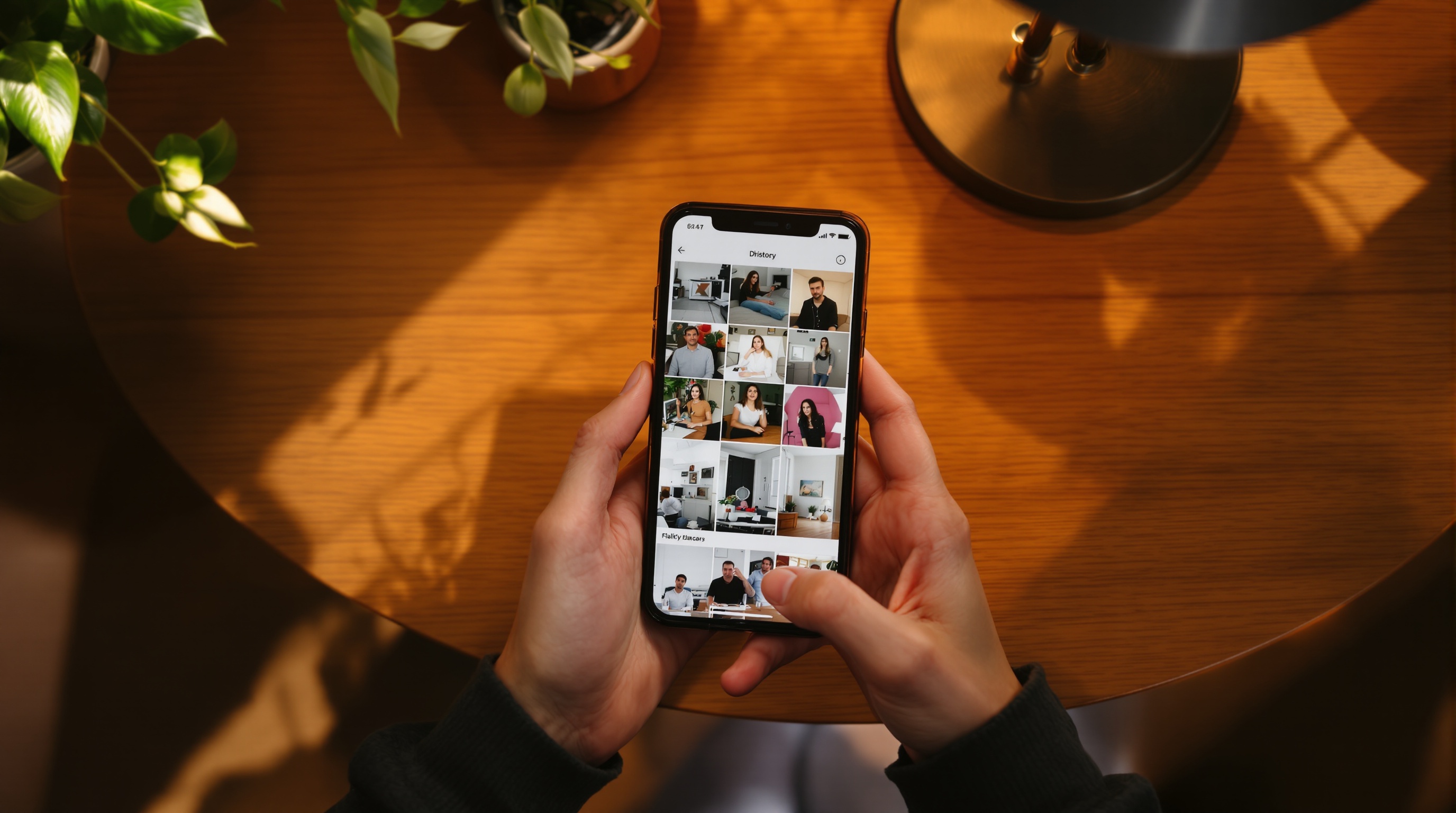
Very few apps need full access to function correctly. Here is an honest breakdown:
| App Type | Needs Full Access? | Why |
|---|---|---|
| Photo backup service | Yes | Must see entire library to back up everything |
| Photo editor with library browsing | Depends | Only if you want to browse inside the app |
| Social media | No | Limited access works - select photos when posting |
| Messaging apps | No | Limited access works - select photos when sending |
| Photo sharing (upload specific albums) | No | Limited access works - select photos to upload |
| AI photo editors | No | Only need the specific photo you are editing |
| Dating apps | No | Only need photos you choose for your profile |
The rule of thumb: if an app only needs to see photos you actively choose to share with it, limited access is sufficient. Full library access should only go to apps whose primary function is managing or backing up your entire photo collection.
How to Audit Your Current Photo Permissions
Most people granted full photo access to dozens of apps over the years and never revisited those decisions. Here is how to audit them.
On iPhone (iOS 16 and later)
- Open Settings, then Privacy and Security, then Photos
- You will see every app that has photo access and its level (Full Access, Limited Access, or Add Photos Only)
- Tap any app to change its permission level
- Downgrade social media, messaging, and utility apps to Limited Access
On Android (14 and later)
- Open Settings, then Privacy, then Permission Manager, then Photos and Videos
- Review which apps have "Allow all" versus "Allow selected"
- Switch apps you do not trust to "Allow selected" or "Deny"
When you downgrade an app to limited access, the app still works. It will ask you to select photos each time you want to share something - which is actually what you want. You are making a conscious choice about which images leave your device rather than giving blanket permission.
If you want to share photos with family or friends without giving any app access to your entire library, Viallo is a private photo sharing platform that works with limited access on both iOS and Android. You select specific photos to upload into albums, share them through a link, and recipients view everything - lightbox, location grouping, map view - without creating an account. Your unshared photos never leave your device.
The Hidden Risk: What Photo Metadata Reveals
Photo access is not just about the image itself. Every photo contains EXIF metadata: GPS coordinates where it was taken, the exact time and date, your device model, and sometimes your name. An app with full library access can read all of this for every photo you have ever taken.
That means an app can build a complete map of everywhere you have been, determine your home address (your most-photographed location), identify your workplace, track your travel patterns, and know which devices everyone in your household uses. All from photo metadata alone, without looking at the images themselves.
In 2026, Amazon's Bee wearable AI device launched requesting access to photos, contacts, calendar, and location data to "personalize your experience." While the photo access was listed as optional, the product works better with more data - creating pressure to grant access even when you are uncomfortable with it. This pattern is increasingly common: apps frame invasive permissions as optional but make the experience noticeably worse without them.

5 Rules for Photo Permissions
- 1. Default to limited access. When any app asks for photo access, choose "Select Photos" or "Limited Access" first. Only upgrade to full access if the app genuinely cannot function without it.
- 2. Audit quarterly. Set a reminder to check Settings, Privacy, Photos every three months. Remove access from apps you no longer use.
- 3. Separate sensitive photos. Keep photos you would never want an app to access in a separate location - either a Hidden album (iOS) or Secure Folder (Samsung) or an external service that does not scan your images.
- 4. Question every AI feature. When an app offers "smart suggestions" or "AI-powered" anything related to your photos, it means your images are being analyzed. Decide if the feature is worth the access.
- 5. Use sharing apps that work with limited access. Photo sharing should not require full library access. Viallo, AirDrop, and email all work with per-photo selection. If a sharing app demands full access, it wants more than it needs.
Frequently Asked Questions
What is the safest photo permission level to give apps?
Limited access (iOS) or "Allow selected photos" (Android) is the safest option that still lets you use photo features. The app only sees photos you explicitly choose - everything else is invisible. Viallo works with limited photo access on both platforms, letting you select specific photos to upload without exposing your full library. Only backup apps like Google Photos genuinely need full access to function.
How do I check which apps have access to all my photos on iPhone?
Go to Settings, then Privacy and Security, then Photos. Every app with photo access is listed with its permission level. Tap any app to change it. Most people find 15 to 30 apps with "Full Access" that should be downgraded to "Limited Access." Google Photos, iCloud, and dedicated backup services are the only apps that typically need full access. Social media, messaging, and utility apps should be set to Limited.
Is it safe to give Instagram full access to my photos?
It is not necessary and not recommended. Instagram works fine with limited photo access - you select which photos to post each time. With full access, Instagram can scan your entire library for ad targeting and content suggestions, reading location data, faces, and interests from images you never posted. Viallo offers an alternative for private photo sharing: upload selected photos into albums and share via link, with no account required for viewers and no scanning of your library.
What is the difference between photo access and camera access?
Camera access lets an app activate your camera to take new photos in real time. Photo library access lets an app read existing photos already saved on your phone. They are separate permissions - an app can have camera access without photo access, and vice versa. Camera access is needed for video calls, QR scanning, and in-app photography. Photo library access is needed for uploading existing images. Granting both together gives an app the most complete view of your visual life.
Can an app read my photo locations if I give it photo access?
Yes. Full photo access includes reading all EXIF metadata, which contains GPS coordinates for every photo taken with location services enabled. An app with full access can determine your home address, workplace, travel history, and daily routines from metadata alone. On iPhone, you can strip location data before sharing by tapping the share button, then Options, and disabling Location. Viallo's metadata editor also lets you review and remove EXIF data before sharing albums.